

All Units
Pick any resource type and get every stat plus growth in one table, with drill-down to trends.
All Units is the Swiss Army knife of the Storage section. Pick a resource group and you get one table with every one of those resources across every device, with current stats and growth. When you have 20 arrays, checking each device console for a stale volume or a hot pool is an afternoon. Here it is one sort.
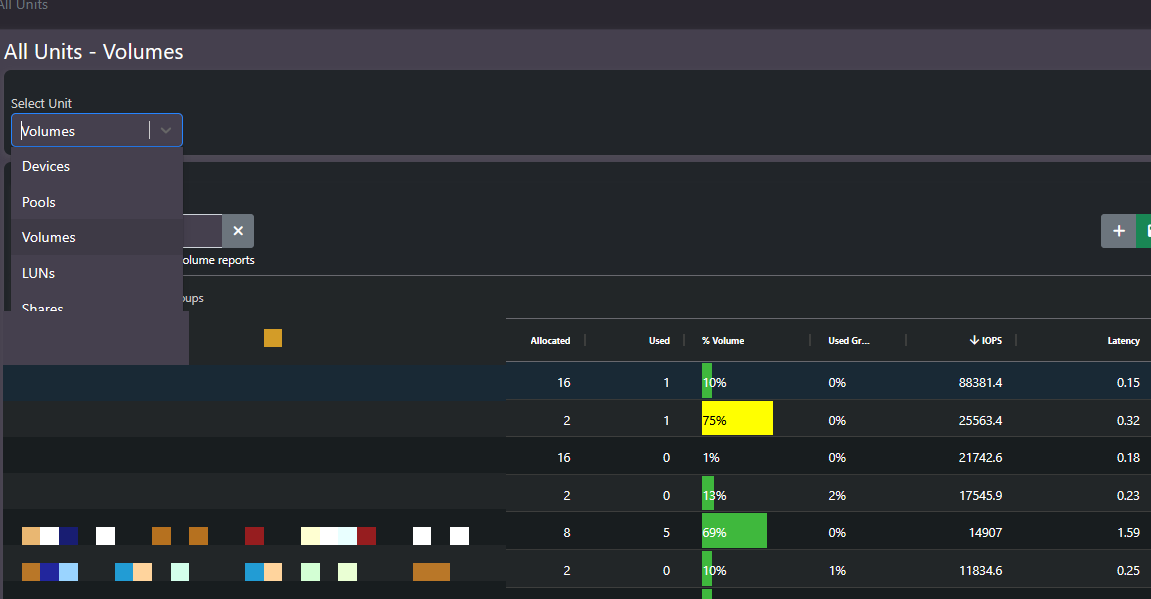
What this screen shows
The Select Unit dropdown switches the entire table between resource types:
| Resource type | What you query at this level |
|---|---|
Devices | Array-level stats and growth across the estate |
Pools | Pool utilization and headroom on every device at once |
Volumes | Per-volume allocation, usage, and IO, sortable across all arrays |
LUNs | Block-level detail for host mapping questions |
Shares | File share capacity and activity |
Nodes | Controller and node level stats for scale-out platforms |
Every row shows allocation, usage, utilization percentage, growth, IOPS, and latency. Because the table spans all devices, cross-device questions such as which volumes anywhere are over 75% full, or which pools carry the most IO, are answered by a sort instead of a device-by-device tour.
Drill down to trends
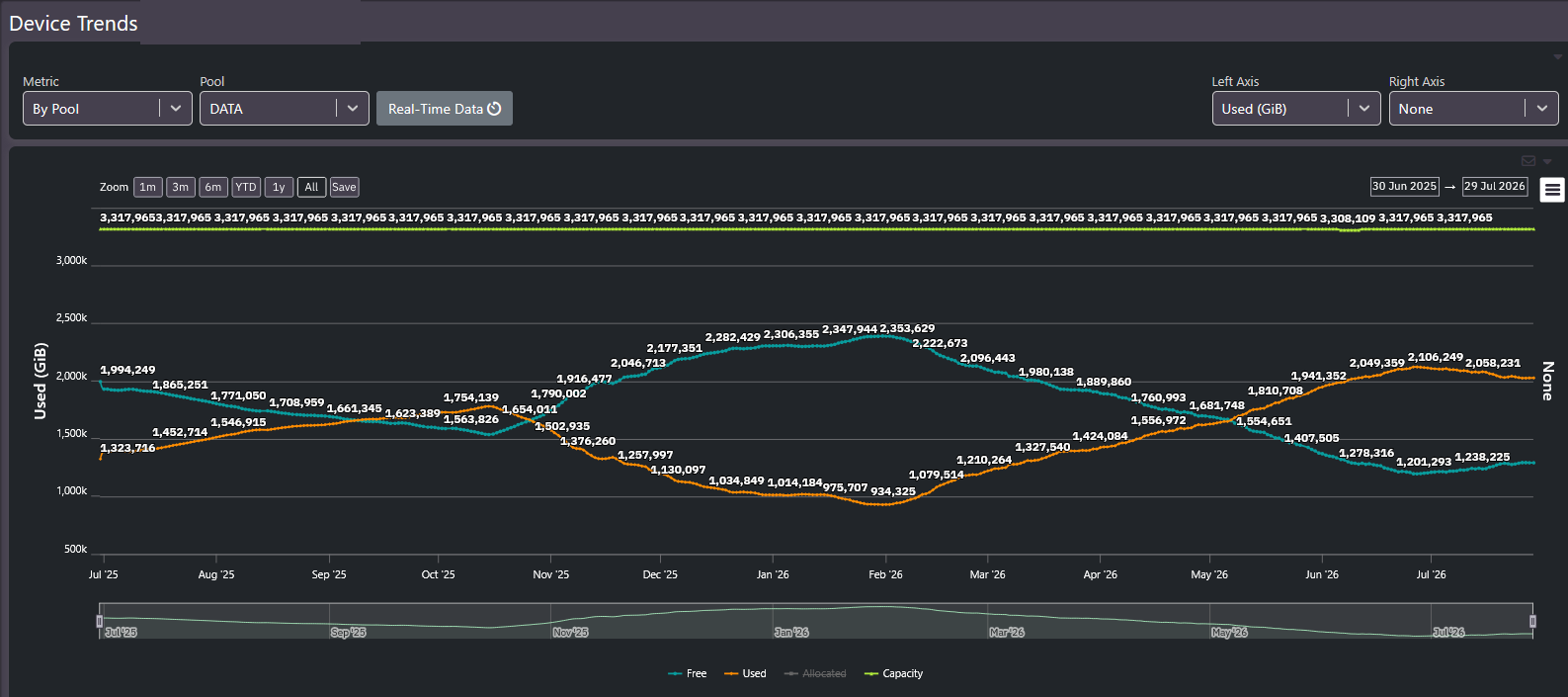
Any resource in the table opens into its own trend view. The example below is a single pool’s capacity trend: used, free, allocated, and total capacity over a selectable window, down to real-time data.
Real-world use case
On a review call, a customer asked how much their environment had grown, then changed the question mid-meeting: not the last month, but growth since December. The answer took under a minute, live, by picking the resource and changing the date range. Most teams do this kind of question in what amounts to educated guess mode, taking last year’s number and adjusting by 10%. Having the actual per-resource growth on demand replaces the guess.
Tip: The resource dropdown covers more than devices. If the question is about a specific share, node, or LUN, query at that level directly rather than approximating from device totals.
Related screens
For change between two specific dates, Delta Report is purpose-built. For the estate-level picture these resources roll up into, start at Enterprise Summary.