

Backup Pool Summary
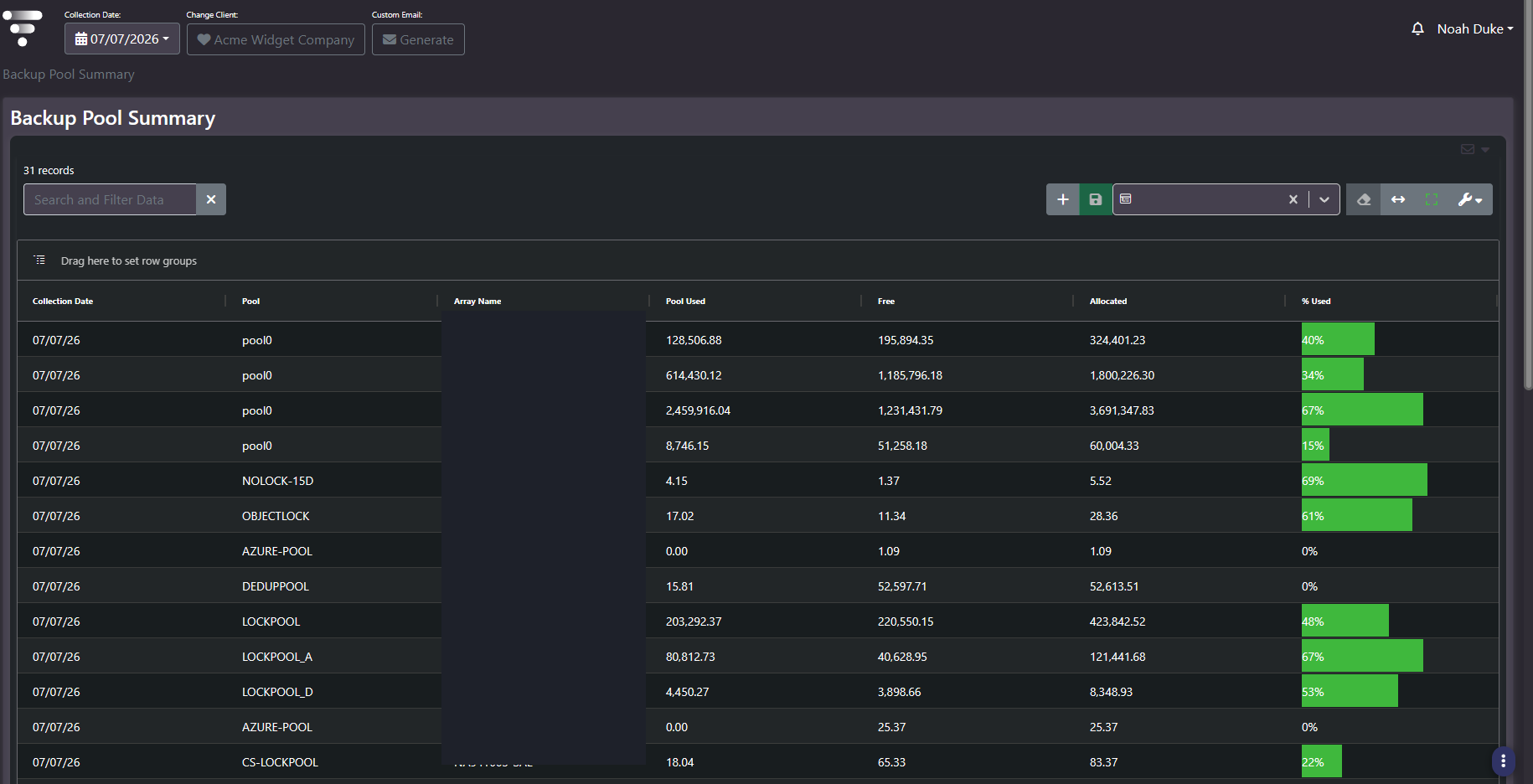
Purpose: Every backup pool with its used, free, and allocated capacity and a percentage-used bar. A flat, sortable answer to which pool is closest to full, across every backup appliance in one grid.
When to use it
- Find the backup pools approaching capacity
- Compare pool utilization across several backup appliances at once
- Check whether immutable and locked pools have room for their retention
- Identify pools provisioned and never used
Key areas and metrics
| Column | What it tells you |
|---|---|
| Collection Date | The snapshot the row belongs to |
| Pool | The pool name as configured on the appliance |
| Array Name | Which backup device the pool lives on |
| Pool Used | Capacity holding data |
| Free | Capacity remaining |
| Allocated | Total capacity assigned to the pool |
| % Used | Utilization, rendered as a proportional data bar |
Pool names carry meaning worth reading rather than skipping. Conventions typically encode the protection behaviour: a lock or object-lock pool is immutable storage, a dedup pool is deduplicated, a cloud or Azure pool is a tiered target, and a retention figure in the name indicates the lock period.
Immutable pools deserve their own read
Pools holding immutable copies cannot have data deleted from them before the lock expires. That means a conventional pool nearing capacity can be relieved by expiring old data, and an immutable pool cannot. The only remedies are adding capacity or waiting out the retention.
So a locked pool at high utilization is a materially more urgent finding than a standard pool at the same percentage, and the usual response of reclaiming space is unavailable. Identify which of your pools are immutable and watch those thresholds harder.
Common actions
- Sort by % Used descending. The data bars make the top of the list readable at a glance.
- Group by Array Name to see whether pressure is concentrated on one appliance, which changes the fix from retention tuning to hardware.
- Look for pools at zero used with non-zero allocated. Those are provisioned and idle, and often the cheapest capacity to redeploy.
- Read allocated against free. A pool with little allocated capacity will hit a threshold quickly regardless of how healthy the percentage looks today.
Tips
Percentage alone is misleading on small pools. A pool at 69% with a few gibibytes allocated is a lab or staging pool, not an estate risk. Sort by free capacity as well as by percentage before setting priorities.
Related screens
Backup Pool Trend shows how a single pool got to its current position. Backup Summary Trend is the estate-wide total. Backup Status carries the retention settings driving pool consumption.