

Cloud All Units
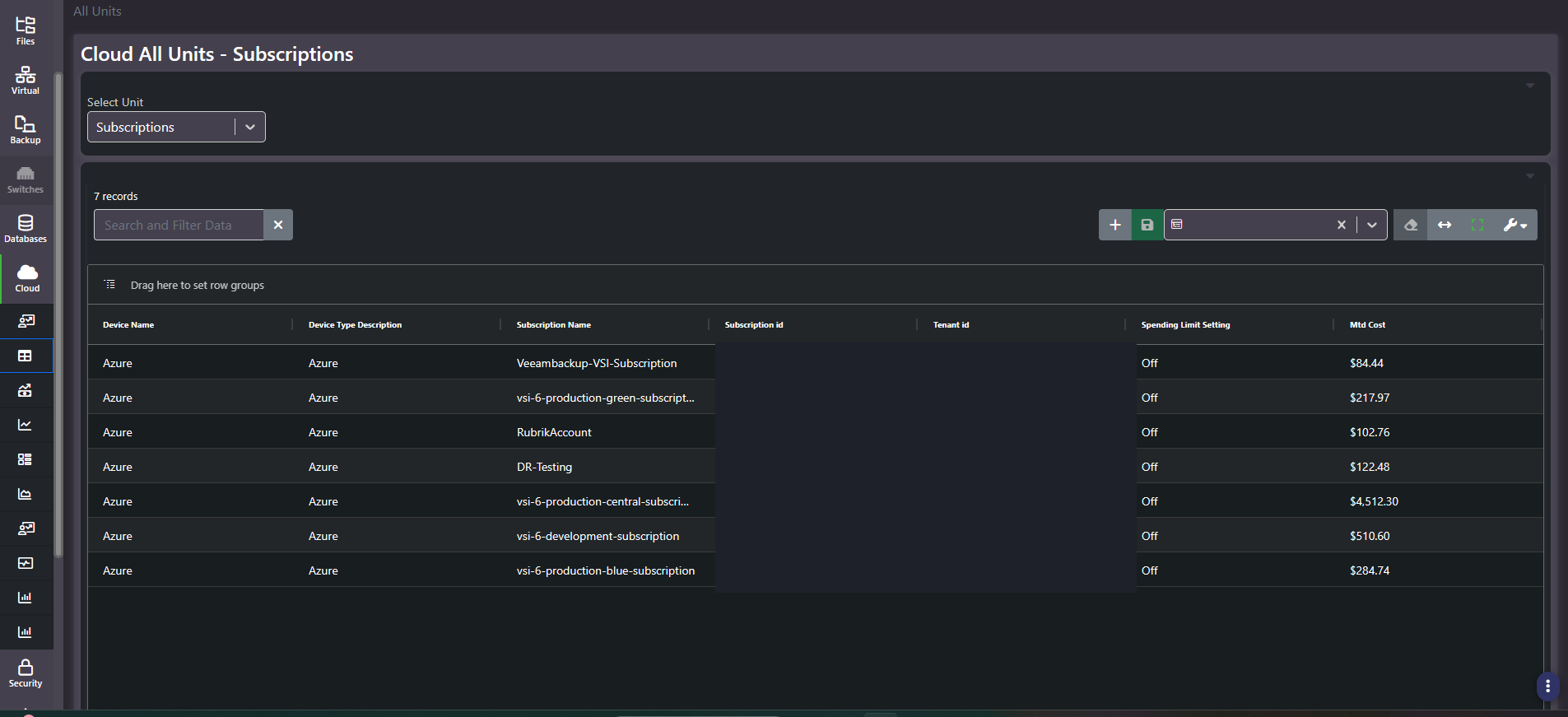
Purpose: The cloud inventory. A unit selector switches the grid between object levels, with the subscription view carrying billing identity, spending limit configuration, and month-to-date cost per subscription.
When to use it
- Confirm which subscriptions are actually under collection, and reconcile against the tenant
- Check which subscriptions have a spending limit configured and which do not
- Rank subscriptions by month-to-date cost
- Get the subscription and tenant identifiers needed to cross-reference against the cloud console
Key areas and metrics
A Select Unit dropdown at the top chooses the object level; the panel heading updates to match. With Subscriptions selected the grid carries:
| Column | What it tells you |
|---|---|
| Device Name | The collector entry the subscription arrives through |
| Device Type Description | The cloud platform |
| Subscription Name | The subscription as named in the cloud tenant |
| Subscription id | The platform identifier, for cross-referencing to the console |
| Tenant id | The directory the subscription belongs to |
| Spending Limit Setting | Whether a platform spending limit is enabled |
| Mtd Cost | Month-to-date cost for that subscription |
The grid is the standard analytical component: record count, search and filter, saved column settings, clear filters, fit columns, full screen, settings menu, and a drag zone for row grouping.
Spending limit is the column people miss
A spending limit is the platform’s own hard stop, and it is commonly off across an entire estate because it was never part of the subscription-creation process. That is a governance finding rather than a cost finding: it means nothing at the platform level prevents a runaway workload from spending without bound.
Reading it beside month-to-date cost gives the priority order. A high-cost subscription with no spending limit is where the exposure is largest.
Common actions
- Sort by Mtd Cost descending. Cloud spend concentrates heavily, and usually one or two subscriptions carry most of it.
- Count the records against your tenant. A missing subscription here is invisible in every other cloud report.
- Group by Device Name to see how subscriptions distribute across collector entries in a multi-tenant or multi-account setup.
- Change the unit selector to move between subscription, resource group, and resource level without leaving the screen.
Tips
Subscription and tenant identifiers are useful for reconciliation and are worth treating as internal. Redact both columns before sharing a screenshot of this grid outside the team that already has console access.
Related screens
Cloud Growth Overview breaks these subscription totals down to individual resources. Enterprise Cloud Budget Trend sets a budget against the aggregate. Chargeback Report allocates cloud cost to business units by tag.