

Cloud Health Alerts
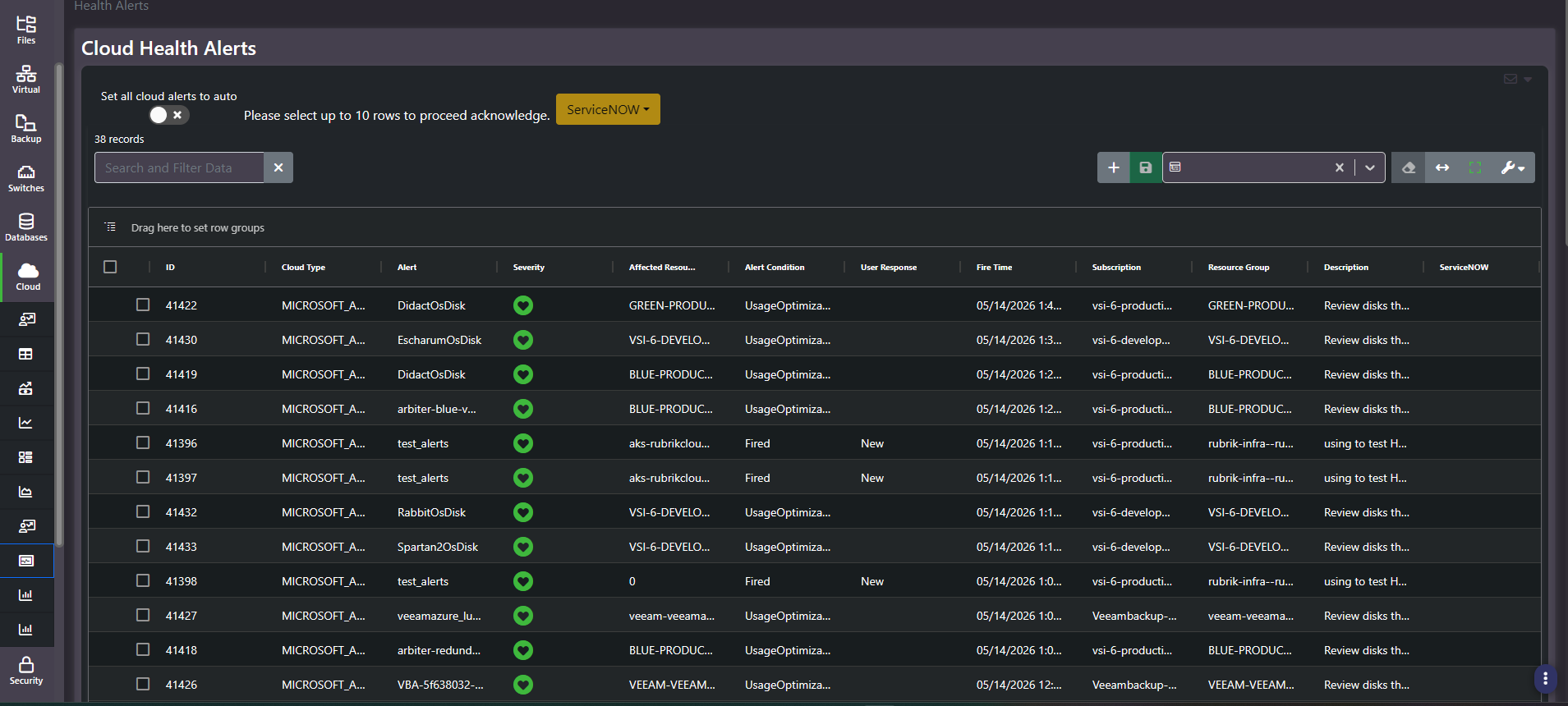
Purpose: The cloud alert queue. Platform-raised conditions with their affected resource, subscription, and resource group, plus bulk acknowledgment, an auto-acknowledge switch, and ServiceNow escalation.
When to use it
- Run daily triage on cloud conditions
- Find usage-optimization findings the platform has raised against specific resources
- Escalate a condition into an incident without retyping its context
- Suppress routine noise using the auto-acknowledge switch
Key areas and metrics
| Column | What it holds |
|---|---|
| ID | Numeric alert identifier |
| Cloud Type | The cloud platform that raised it |
| Alert | The alert or rule name |
| Severity | Shown as an icon |
| Affected Resource | The resource the condition applies to |
| Alert Condition | The category, for example a usage-optimization finding or a fired rule |
| User Response | Where the alert sits in handling, for example new |
| Fire Time | When it triggered |
| Subscription, Resource Group | Where it sits in the cloud hierarchy |
| Description | The detail behind the alert |
| ServiceNOW | Per-row escalation state |
Controls
- Set all cloud alerts to auto. A toggle that auto-acknowledges cloud alerts as they arrive. Useful where the platform raises high volumes of low-value findings, and dangerous for the same reason.
- Row selection with a ten-row cap. Checkboxes plus an on-screen note that up to ten rows can be acknowledged at once, matching the storage and virtual alert screens.
- ServiceNOW menu. A header action for raising or linking incidents from the selected rows.
- Standard grid. Record count, search and filter, saved column settings, view controls, and a row-grouping drag zone.
Two kinds of alert, one queue
The Alert Condition column mixes two genuinely different things. Usage-optimization findings are cost advice: the platform noticing a resource that could be smaller or cheaper. Fired rules are operational: a metric crossed a threshold somebody configured.
They need different handling and different owners. Optimization findings belong in a FinOps backlog and are rarely urgent; fired rules belong to whoever runs the workload and sometimes are. Grouping by Alert Condition splits the queue along that line in one action, and is worth doing before triaging anything.
Common actions
- Group by Alert Condition first to separate cost advice from operational conditions.
- Group by Subscription or Resource Group to route alerts to the team that owns them.
- Select up to ten and acknowledge once each has genuinely been handled.
- Raise a ServiceNow record for anything needing an owner and a due date rather than an acknowledgment.
Tips
Think carefully before enabling auto-acknowledge. It clears the queue rather than the conditions, and usage-optimization findings are exactly the kind of alert worth reading, because each one is a standing cost.
Test or placeholder alert rules left in a tenant will sit in this queue indefinitely and make the count look worse than it is. Retire them at the platform rather than acknowledging them every week.
Related screens
Optimization Recommendations is where cloud cost findings are tracked with adoption status rather than acknowledged. Storage Health Alerts and Virtual Health Alerts use the same acknowledgment and escalation model for the on-prem estate.