

Cloud Resource Group Modeling
Purpose: The cloud what-if screen, and the one place in the product where a proposed cloud workload is costed against an equivalent on-premises cluster on the same chart. Define a workload, set a budget, name an on-prem cost source, and compare.
When to use it
- Price a workload before it is provisioned
- Compare running something in cloud against running it on existing on-prem hardware
- Test whether a proposed addition breaks a resource group’s budget
- Build a repatriation or migration case with both sides costed on one basis
Key areas and metrics
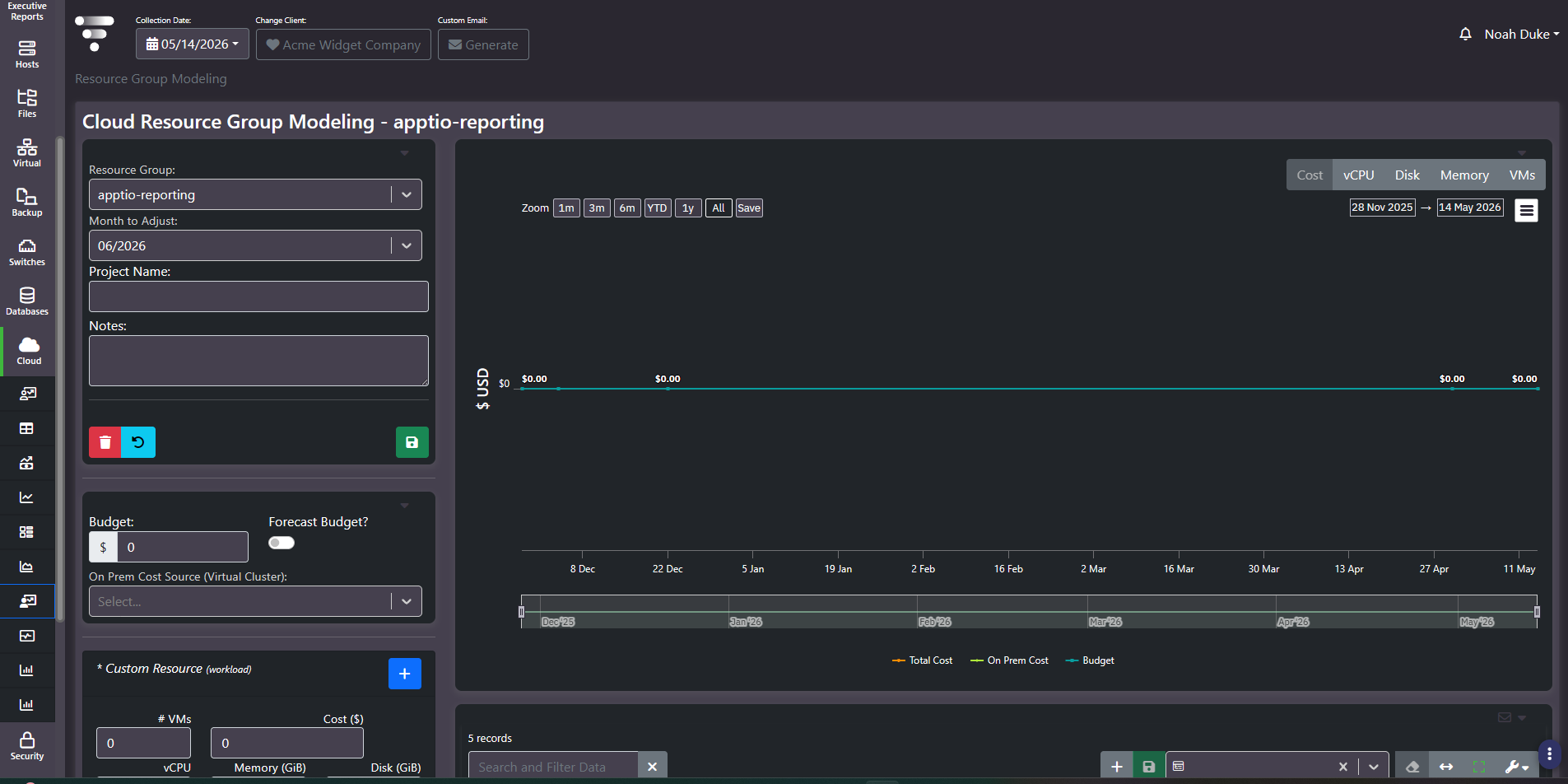
The left column holds the scenario inputs, stacked in three panels.
| Panel | Inputs |
|---|---|
| Project setup | Resource Group, Month to Adjust, Project Name, Notes, with delete, reset, and save controls |
| Budget | Budget amount, a Forecast Budget toggle, and On Prem Cost Source (Virtual Cluster) |
| Custom Resource (workload) | Number of VMs, Cost, vCPU, Memory (GiB), Disk (GiB), with an add control for further workload rows |
The right side carries a metric tab group across Cost, vCPU, Disk, Memory, and VMs, so the same scenario can be read as a spend question or a capacity question. The chart plots three series, total cost, on-premises cost, and budget, with the usual zoom presets, date pickers, save, range brush, and export. A grid beneath holds the modelled entries.
The on-premises comparison is the point
On Prem Cost Source (Virtual Cluster) attaches a real, collected virtual cluster to the scenario, and its cost is plotted as its own series. That means the comparison is not cloud pricing against a hand-built spreadsheet estimate; it is cloud pricing against what your own hardware actually costs, derived from the same cost model the rest of the platform uses.
This is the screen for a migration or repatriation decision. Most tools can price the cloud side. Pricing both sides on a consistent basis is what makes the answer defensible when finance asks how the on-prem figure was arrived at.
Common actions
- Model more than one scenario. The value is comparative, and a single model only tells you what one option does.
- Set Month to Adjust to when the workload actually lands. Timing changes the annual figure materially, and a scenario dated wrong will be argued with.
- Select an on-prem cost source even when the plan is cloud. Knowing the alternative cost is useful context whether or not you choose it.
- Write assumptions into Notes. Someone will ask in six months why the model said what it said, and reproducing an undocumented scenario is harder than rebuilding it.
- Work the Cost tab last. Establish the capacity shape first, then price it.
Tips
Modelled entries persist until deleted, and the panel carries its own delete control for that reason. Clear abandoned scenarios, and name projects clearly enough that nobody mistakes a hypothetical for a committed plan.
Related screens
Cloud Resource Group Forecast covers the same resource group without a scenario applied. Cluster Modeling is the on-prem equivalent, modelling hardware additions rather than cloud workloads. Tag Cost Modeling models by business unit instead of by resource group.