

Security Dashboard
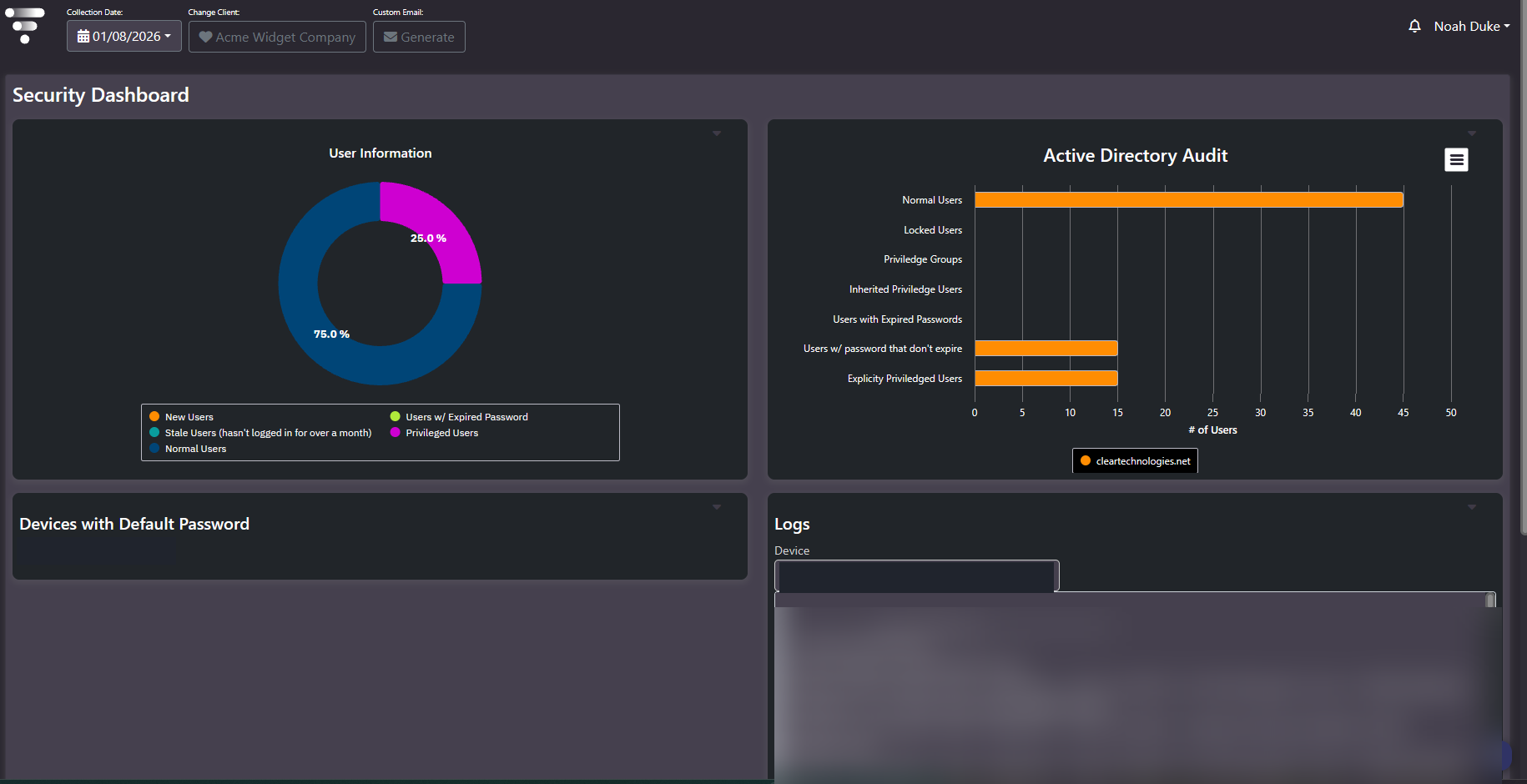
Purpose: Access review screen for the platform and the directory behind it. Four panels covering account composition, Active Directory conditions, devices still running default credentials, and raw collection logs.
When to use it
- Run a periodic user access review without scripting against a domain controller
- Quantify how much of the account population is privileged, stale, or exempt from password rotation
- Find devices still authenticating with vendor default credentials
- Diagnose whether a device’s numbers are stale because collection failed or because the environment changed
Key areas and metrics
| Panel | Visualization | What it carries |
|---|---|---|
| User Information | Donut, legend below chart | Account population split into five categories |
| Active Directory Audit | Horizontal bar chart, x-axis is number of users | Seven directory conditions, one series per audited domain, with an export control in the panel header |
| Devices with Default Password | Plain list | Collected devices still on vendor default credentials, by model and serial |
| Logs | Device selector plus scrollable log | Timestamped collection entries with severity, site, collector type, commands issued, and sample counts |
User Information categories
| Category | What it means |
|---|---|
Normal Users | Standard accounts with nothing flagged against them |
New Users | Recently created accounts |
Stale Users | Accounts that have not logged in for over a month |
Users w/ Expired Password | Accounts whose password has passed its expiry |
Privileged Users | Accounts carrying elevated rights |
Active Directory Audit conditions
- Normal Users. The baseline population, for scale against everything below it.
- Locked Users. Accounts currently locked out.
- Privilege Groups. Count of groups conferring elevated rights.
- Inherited Privilege Users. Accounts holding privilege through group membership rather than direct assignment. These are the ones manual reviews miss, because nobody granted them anything explicitly.
- Users with Expired Passwords. Accounts past password expiry.
- Users w/ Passwords That Do Not Expire. Accounts exempt from rotation policy. Frequently service accounts, and frequently more numerous than expected.
- Explicitly Privileged Users. Accounts granted privilege directly.
Common actions
- Read privileged against normal on the donut. A privileged share in double digits is usually privilege that accumulated rather than privilege that was granted, and it is the finding most likely to surface in an audit.
- Compare explicit against inherited privilege. A small explicit count next to a large inherited count means privilege is arriving through group nesting, so the remediation is a group review rather than an account review.
- Work the default-password list to zero. Every entry is an active exposure on a device the platform can already reach.
- Select a device in Logs when a report looks wrong. The log shows whether collection ran, whether it authenticated, which commands it issued, and how much came back.
Tips
The Devices with Default Password panel should be empty. Any entry is the highest-priority item on the screen. Do not screenshot or export that panel outside the team responsible for remediation, because it names a reachable device and the credential state protecting it.
The Logs panel is often faster than any other screen for separating a collection failure from a genuine change in the environment. Check it before escalating a suspicious trend.
Related screens
Administrative Report holds the change and login history that evidences remediation of anything found here. Storage Health Alerts and Virtual Health Alerts cover operational conditions rather than identity ones.